

Migrating Users Easier with Windows Backup for Organizations
With Windows 10 now out of support, many organizations are moving quickly to adopt Windows 11. One of the biggest hurdles in that process is making sure user data, apps, and settings make the jump without slowing anyone down. Windows Backup for Organizations helps solve that challenge by offering a secure, cloud-based backup and restore experience. It’s designed to support smooth migrations and make device recovery far less painful.
Why Windows Backup for Organizations Actually Matters
Smooth Migration: Automatically transfers Microsoft Store App pins and User settings from Windows 10 to Windows 11.
Hardware Resilience: Makes device replacement or recovery after hardware issues much easier.
Better User Experience: Gives users a familiar, low-friction restore process when they provision a new device.
What’s Included
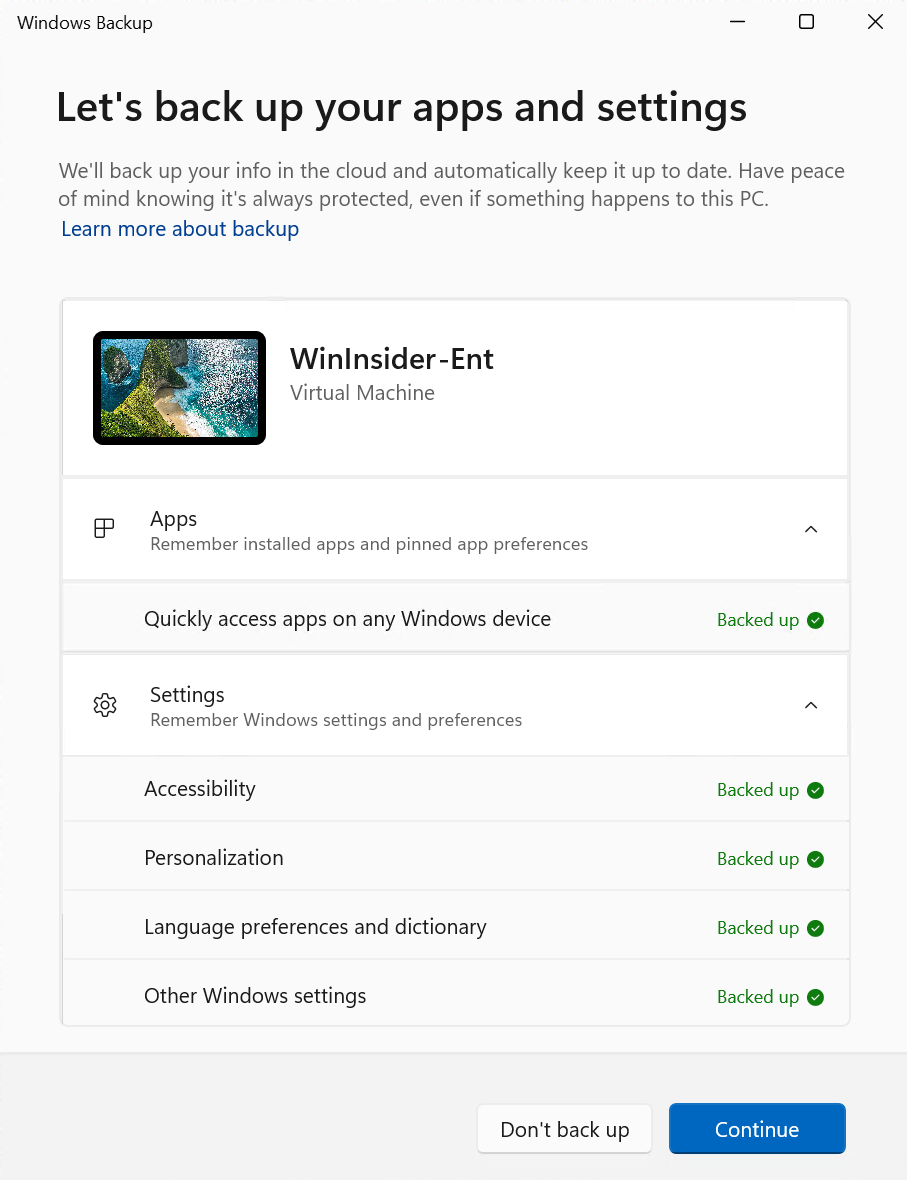
System Settings: Things like accessibility preferences, language choices, and personalization (wallpapers, themes, etc.) are backed up. These are the OS-level tweaks that help users feel “at home” on a new device.
Microsoft Store Apps: Start Menu and Task bars will be repopulated with their respective Microsoft Store Apps. It will not bring down the actual application, but their tiles and pins will remain in the same locations.
Credentials: If you do not block Credential Sync, Wi-Fi networks and saved passwords can be backed up.
What’s Not Included
Files: Your documents, pictures, and downloads won’t come along for the ride unless they’re redirected to OneDrive using Known Folder Move (KFM). No KFM? No files. It is highly recommended to use both Windows Backup and OneDrive KFM.
Installed Apps: You’ll need to handle those separately. Think app deployment strategy, not backup.
Before turning on Windows Backup, make sure your environment meets the following:
Supported OS: Windows 11 (not supported on Windows 11 SE, IoT Core, or Holographic editions).
Backup: Supported on Windows 10 and Windows 11
Restore: Supported on Windows 11 version 22H2 or later — Microsoft Entra joined only
Enrollment: Devices must be enrolled in Intune using supported provisioning methods, such as Autopilot user‑driven mode.
Licensing: A Microsoft 365 subscription that includes Intune.
Authentication: MFA is recommended. Be aware of limitations when using phishing-resistant MFA on Hyper‑V VMs.
Currently Unsupported Scenarios:
Autopilot pre-provisioned deployments, manual enrollment, and devices managed exclusively through Group Policy or ConfigMgr co-management. This also does not currently work on Cloud PCs.
How to Enable Windows Backup with Intune
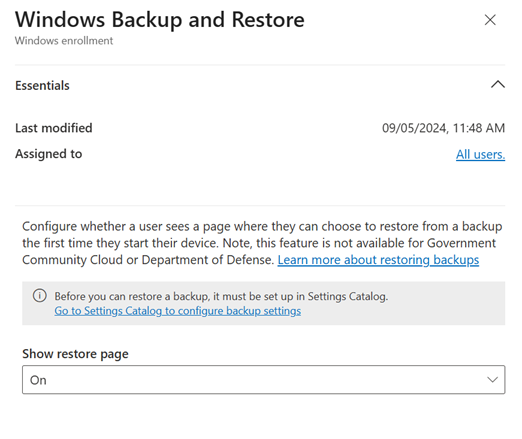
When you enable Windows Backup there are two steps that need to be completed. The restore page is a global setting within your tenant that will apply to all users. By controlling which users are getting the Backup settings, you can effectively control who can use the feature. This is a great way to roll out the feature slowly by including test users first, then expanding the assignment once you are comfortable with the behavior.
Note: Enabling the restore page will not display this page for users during provisioning unless they have a Backup policy assigned and a backup has been completed.
Enabling the Restore Page:
Sign in to the Intune Admin Center
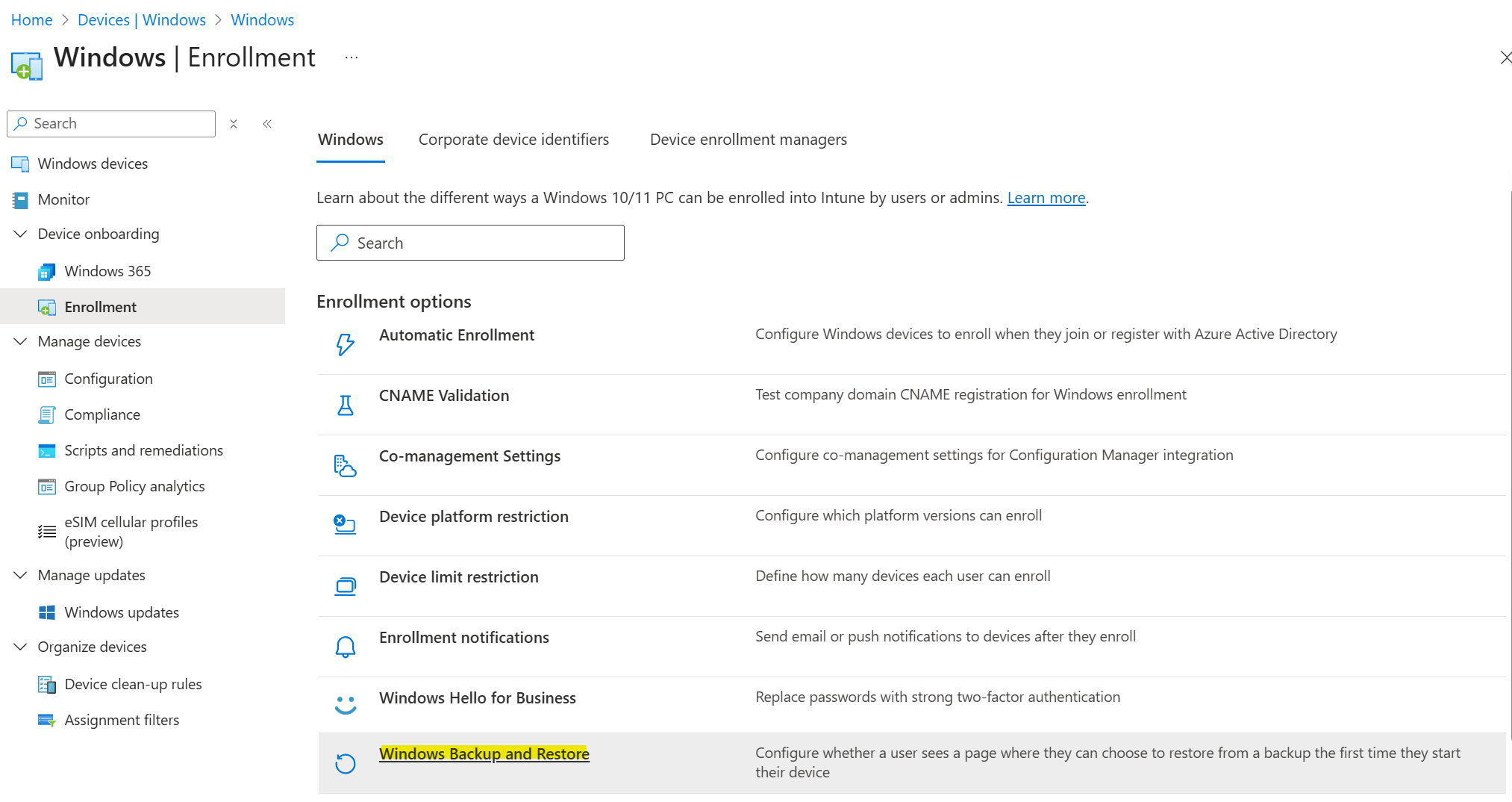
Go to Devices > Enrollment > Windows > Windows Backup and Restore
Update Show Restore Page to On
Enable the Backup Policy
Sign in to the Microsoft Intune Admin Center.
Go to Devices > Configuration profiles > Create profile.
Choose:
Platform: Windows 10 and later
Profile type: Settings Catalog
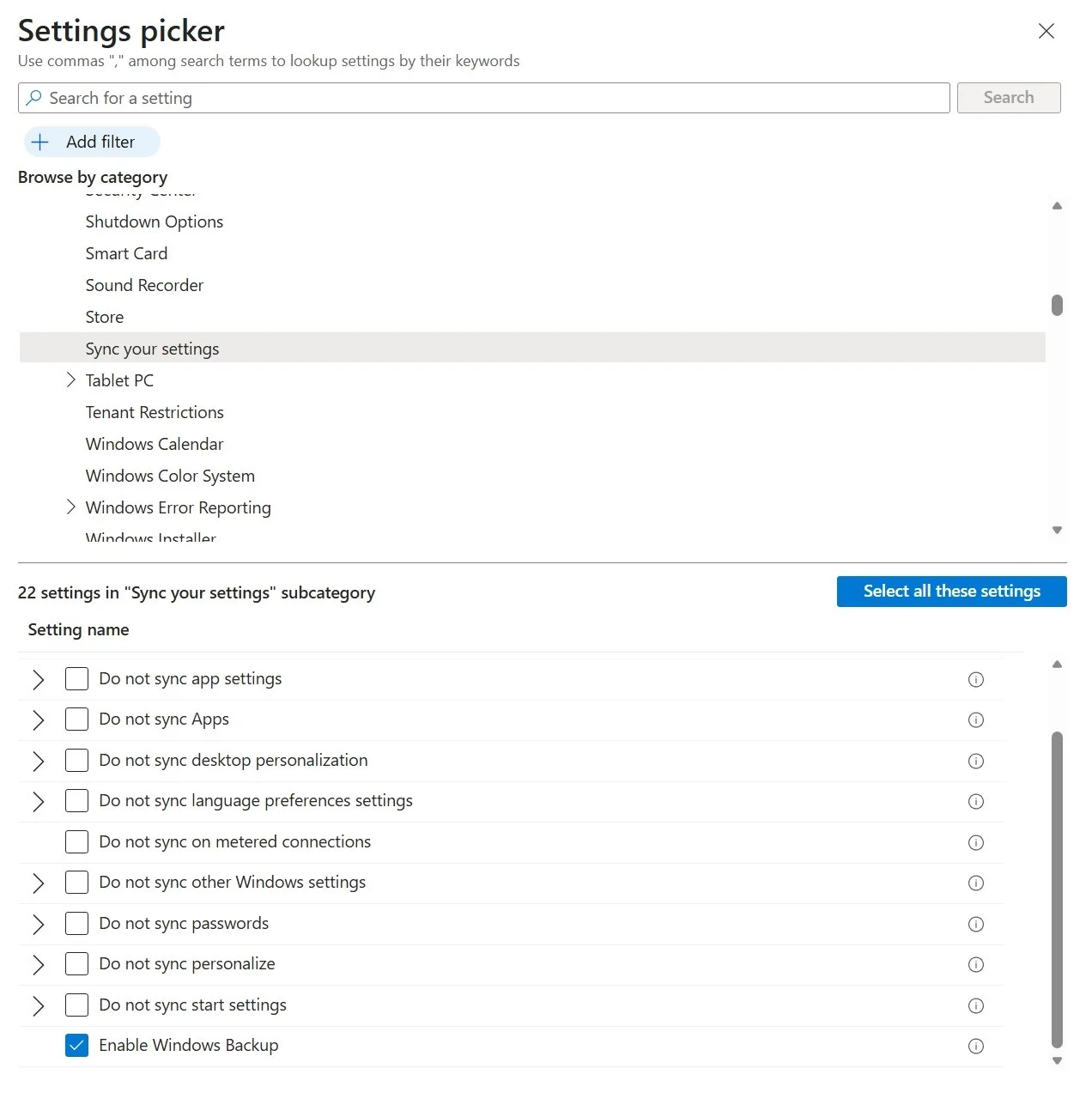
Policy: Administrative Templates → Windows Components → Sync your Settings
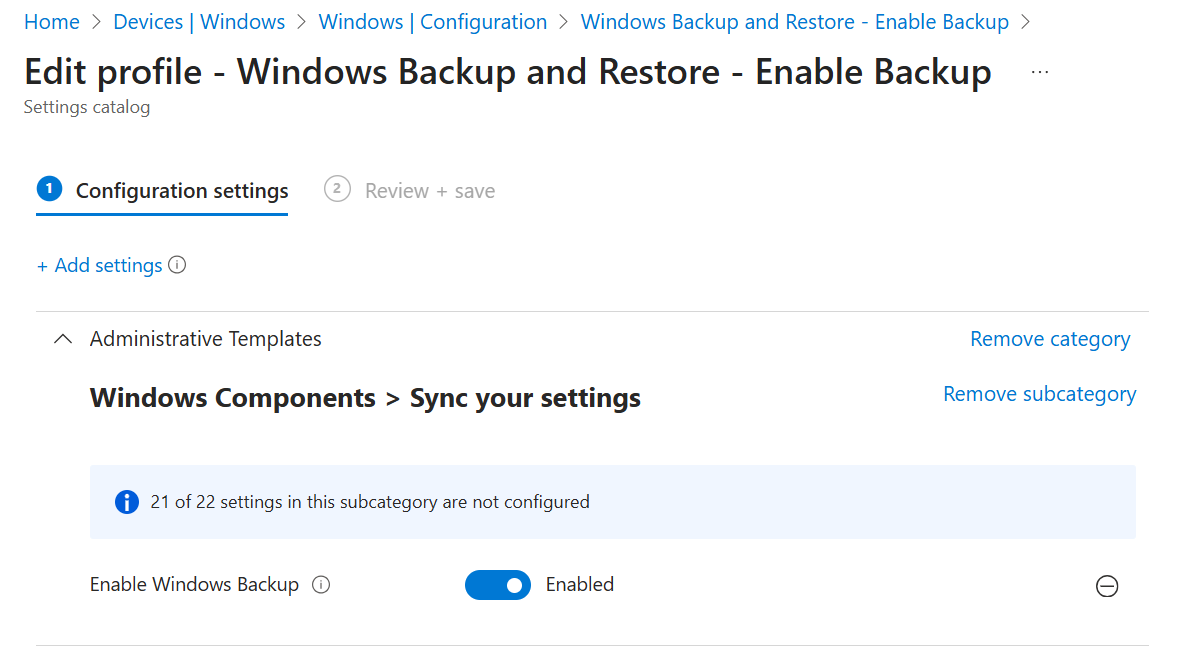
Setting: Enable Windows Backup → Enabled.
Assign the profile to the appropriate user groups.
Save and deploy.
If there are settings that you do not want to be backed up, you can include those using additional policies here.
User Experience
Once you have enabled the policies to allow Windows Backup, your users will be able to start the backup process manually by using a Store App Windows Backup. Backups will be completed automatically every 8 days.
When a user goes through provisioning and hits the restore step, they’ll now see a refreshed restore screen that lets them pick which backup they want to use. If they’ve accumulated multiple backups over time, they can choose the one that makes the most sense for their new device. Backups follow the user, not the hardware, so anyone with more than one device will see all of their available backups listed during restore.
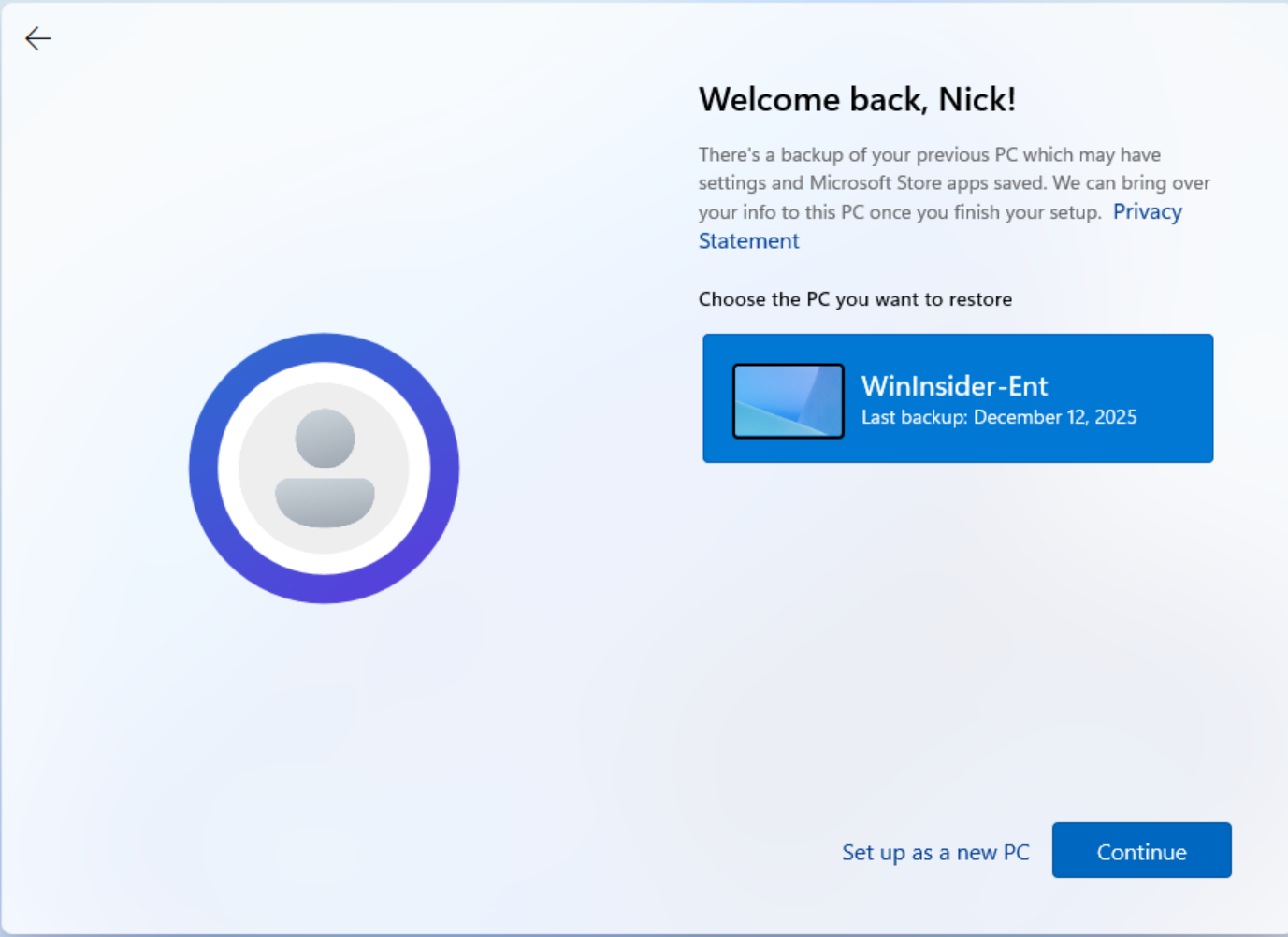
This screen is only shown if the user has backups present and they have signed in using their work or school credentials.
What happening behind the scenes?
Windows Backup quietly handles its work in the background, and there’s a surprising amount of structure to it. When backup is enabled, Windows creates a scheduled task called CloudRestore\Backup, found at:
Task Scheduler → Microsoft → Windows → CloudRestore → Backup.
This task runs automatically every 7–8 days to keep the user’s cloud backup fresh. Each successful run updates a registry value found here:
HKCU\Software\Microsoft\Windows\CurrentVersion\Cloudstore\SystemMetaData\LastFullBackupCompletedTime
This can be a helpful way to confirm when the last full backup actually finished.
If you’re troubleshooting or validating behavior, the Microsoft‑Windows‑CloudRestoreLauncher event log is your best friend. It records key events like BackupStarted, PolicyDisabled, and BackupCompleted, giving you a clear trail to follow when backups aren’t appearing or policies aren’t behaving the way you expect.
Final Thoughts
Windows Backup for Organizations brings value to IT teams looking to streamline Windows 11 migrations and reduce the pain of device replacement. It shines when it comes to preserving user familiarity, settings, personalization, app lists, and even credentials (when allowed). This can help make new devices feel instantly comfortable. But it’s not a silver bullet. Files still rely on OneDrive, and traditional Win32 or line‑of‑business apps won’t magically reappear without a solid deployment strategy behind them.
When you understand both the strengths and the gaps, Windows Backup can become a useful tool in your modernization toolkit. It can ease the user experience, reduce support overhead, and help you build a more resilient endpoint environment.
