

Assigned Access Designer
Simplifying Assigned Access XML creation with Assigned Access Designer
Managing kiosk and restricted user experiences in Windows can be powerful, but anyone who has worked with Assigned Access XML files knows the process can be tedious. Between creating profiles, configuring apps, and ensuring the schema is correct, we spend more time troubleshooting XML than actually deploying solutions.
Assigned Access Designer GitHub
Why Use Assigned Access Designer?
Assigned Access is a powerful feature, but XML complexity often discourages admins from using it. My tool bridges that gap making it easier to design kiosk experiences, tailor multi‑app environments, and deploy them consistently across enterprise or education environments.
With the ability to create, edit, and merge XML files, plus support for all the customization options Microsoft provides, admins can finally spend less time fighting XML and more time delivering secure, user‑friendly endpoints.
Try the tool in a test environment, experiment with different profiles, and deploy via Intune to see how much smoother kiosk configuration can be.
Features
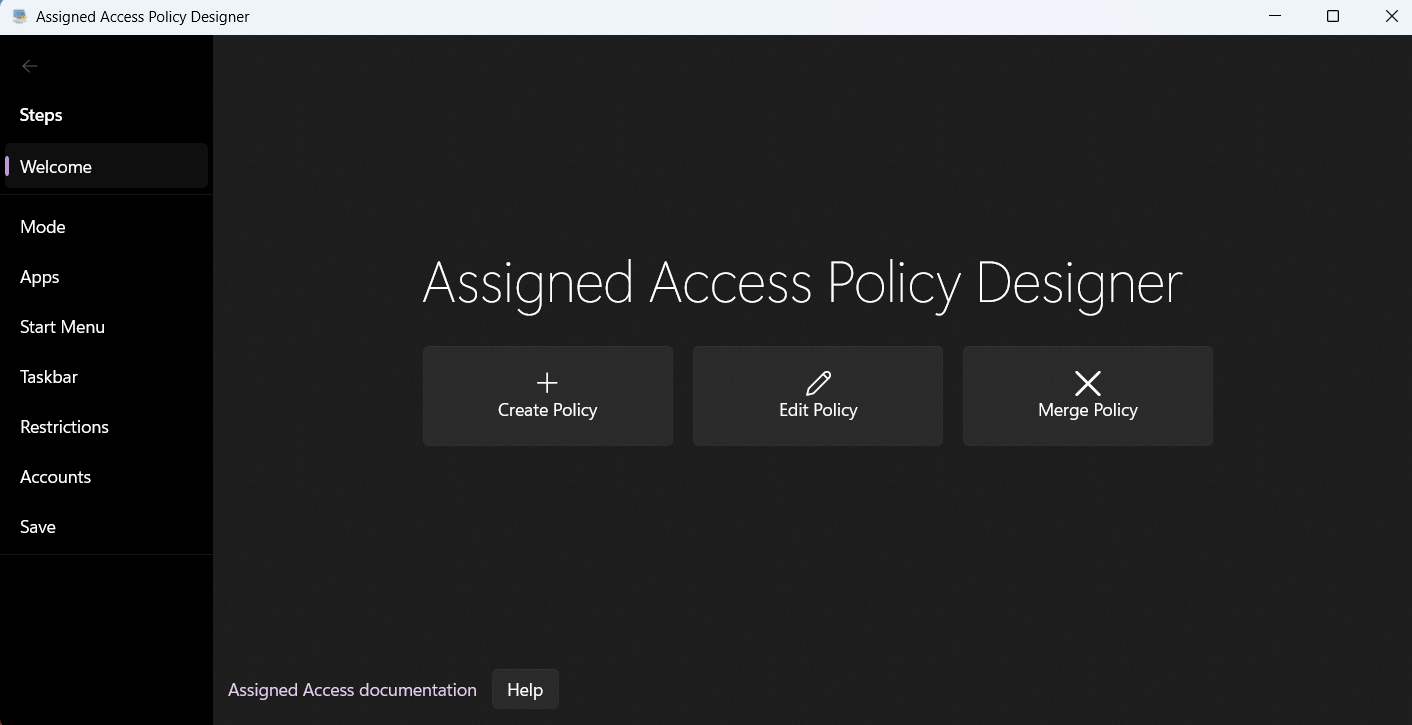
Create – Generate a brand‑new Assigned Access XML file from scratch.
Edit – Open and modify existing XML files without worrying about breaking schema rules.
Merge – Combine multiple XML files into one, perfect for environments with different kiosk profiles or multi‑app setups.
Schema Validation - Automatically validate the created XML against all XML Schemas to ensure the XML you are deploying is set up properly
Single‑App and Multi‑App Kiosks
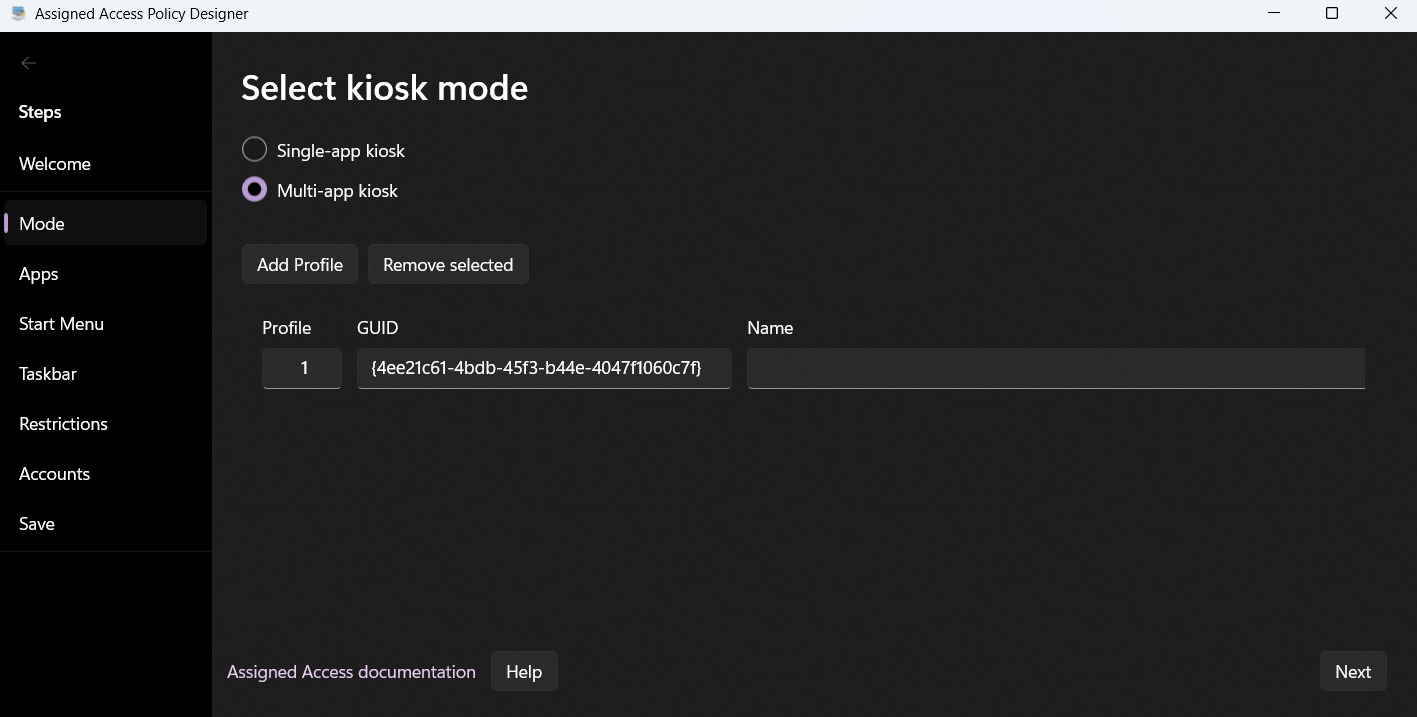
The tool supports both kiosk modes:
Single‑App Kiosk – Lock a device to a single UWP app or Microsoft Edge in full screen. Ideal for public browsing stations or digital signage.
Multi‑App Kiosk – Allow a curated set of apps with a tailored Start menu and Taskbar. Perfect for frontline workers, students, or lab devices.
Multiple Profiles
Both single‑app and multi‑app kiosks can be configured with multiple profiles, allowing different apps and restrictions based on the user or group assigned. For example:
A student profile with educational apps.
A frontline worker profile with line‑of‑business apps.
A public kiosk profile with only Edge in full screen.
This flexibility ensures that one device can serve multiple roles securely and consistently.
Applications & Deployment Features
Single‑App Kiosks
Single‑app kiosks lock the device to one Universal Windows Platform (UWP) app or Microsoft Edge. They’re ideal for scenarios like digital signage, public browsing stations, or single‑purpose devices.
Key features supported:
UWP Apps or Microsoft Edge – Choose a single app to run in full screen.
Launch Arguments – Pass command‑line arguments to the app at startup (e.g., configure Edge to open a specific site or run in kiosk mode).
Breakout Sequence – Define a custom key combination that allows an admin to exit kiosk mode when needed. This ensures users stay locked in, but IT staff can still regain control quickly.
Multi‑App Kiosks
Multi‑app kiosks allow a curated set of apps, giving users more flexibility while still enforcing restrictions. These are perfect for frontline workers, classrooms, or shared devices.
Key features supported:
UWP or Desktop Apps – Deploy both modern UWP apps and traditional Win32 desktop applications.
Auto launch (One per Profile) – Configure one app to automatically launch when the user signs in.
Auto launch Arguments – Pass startup arguments to the auto launch app for customized behavior.

Configurable Accounts and Groups
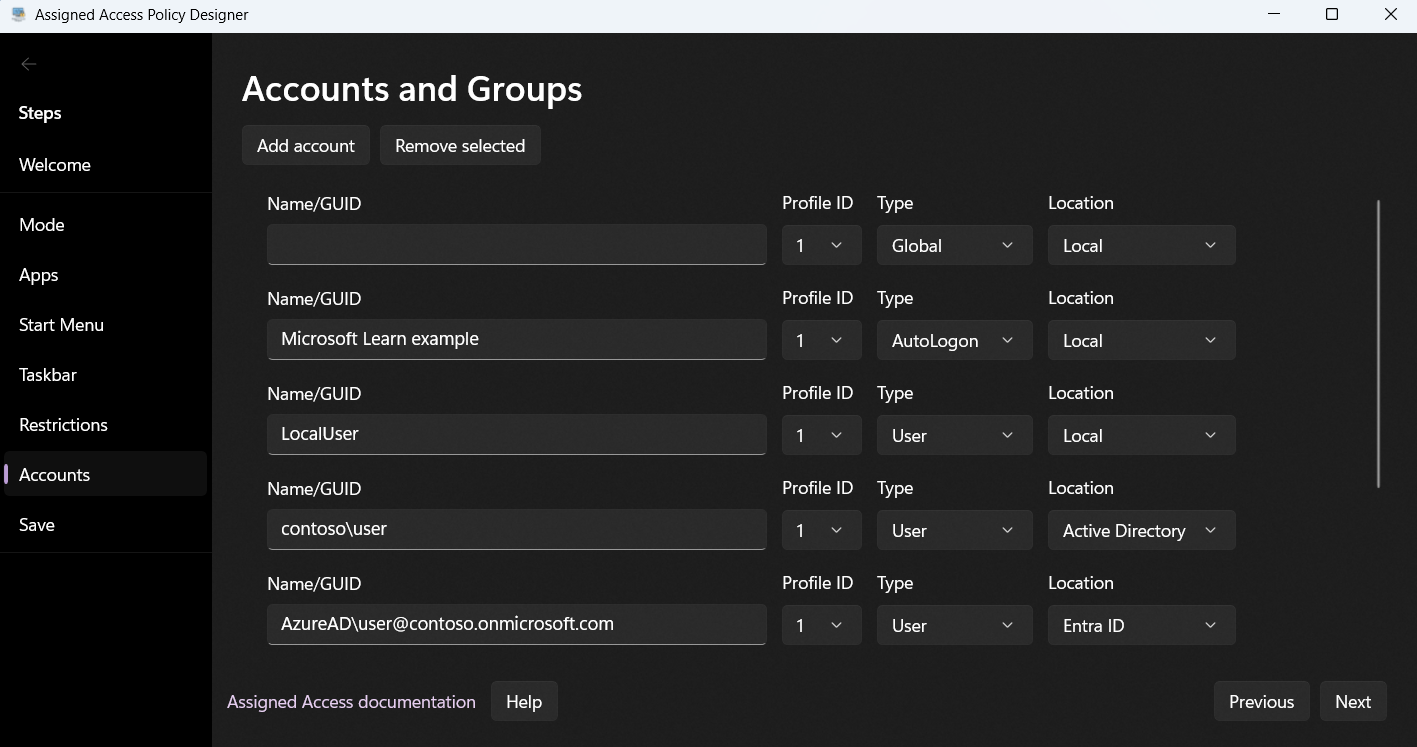
This tool lets you configure:
Local user accounts – Standard accounts tied to the device using .\Username or Username
Active Directory users – Domain accounts using
domain\username.Microsoft Entra (Azure AD) users – Specified with
AzureAD\UPN.Local groups – Assign profiles to local security groups using .\Username or Username
Active Directory groups – Security or distribution groups in AD using d
omain\username.Microsoft Entra groups – Using the group’s object ID.
Autologin - Create a local user account that automatically signs into the Kiosk experience
Global Profile - Assign the Kiosk experience to all non-admin accounts
Customization Options
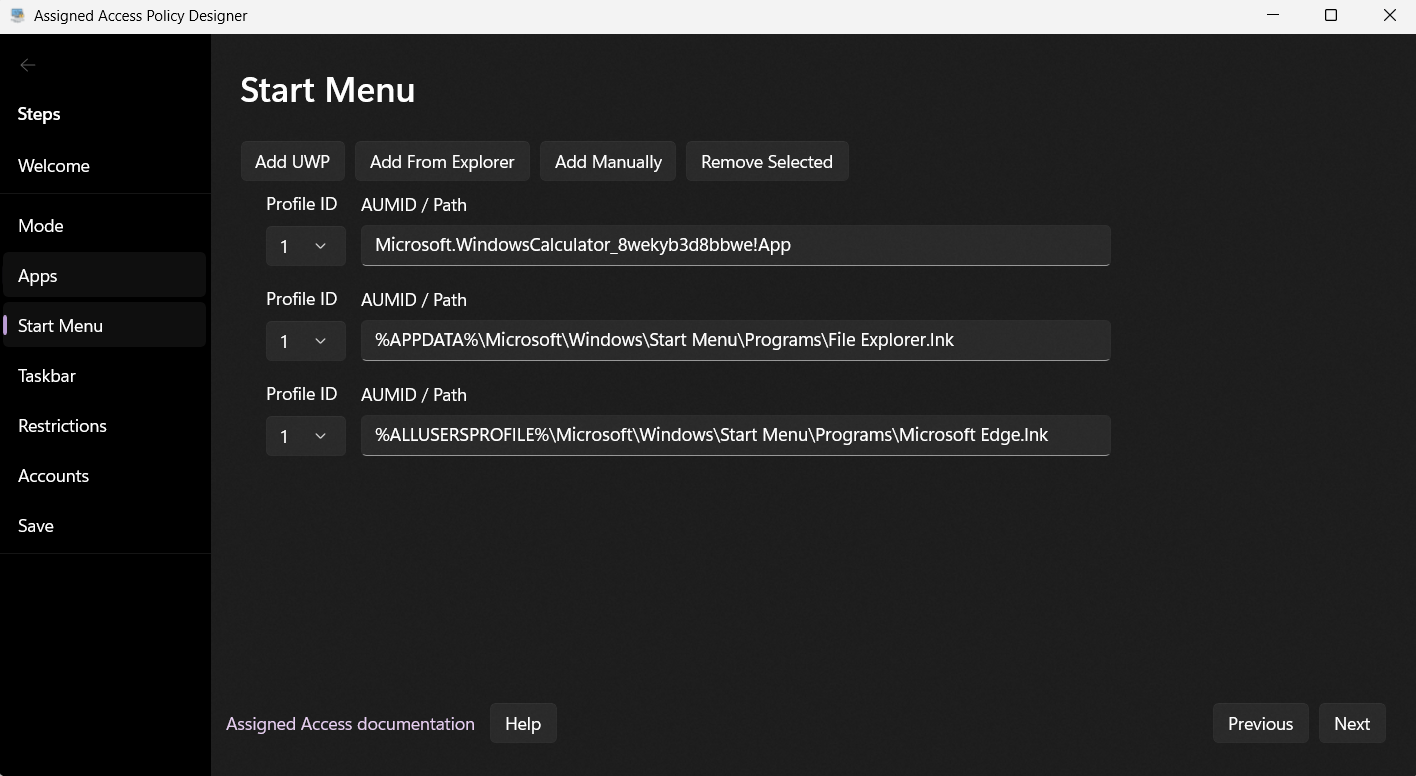
The tool makes it easy to configure the features supported in Assigned Access XML:
Start Menu Pins – Define which apps or sites appear for multi‑app kiosks.
Taskbar Settings – Show or hide the taskbar, or apply a custom pinned layout.
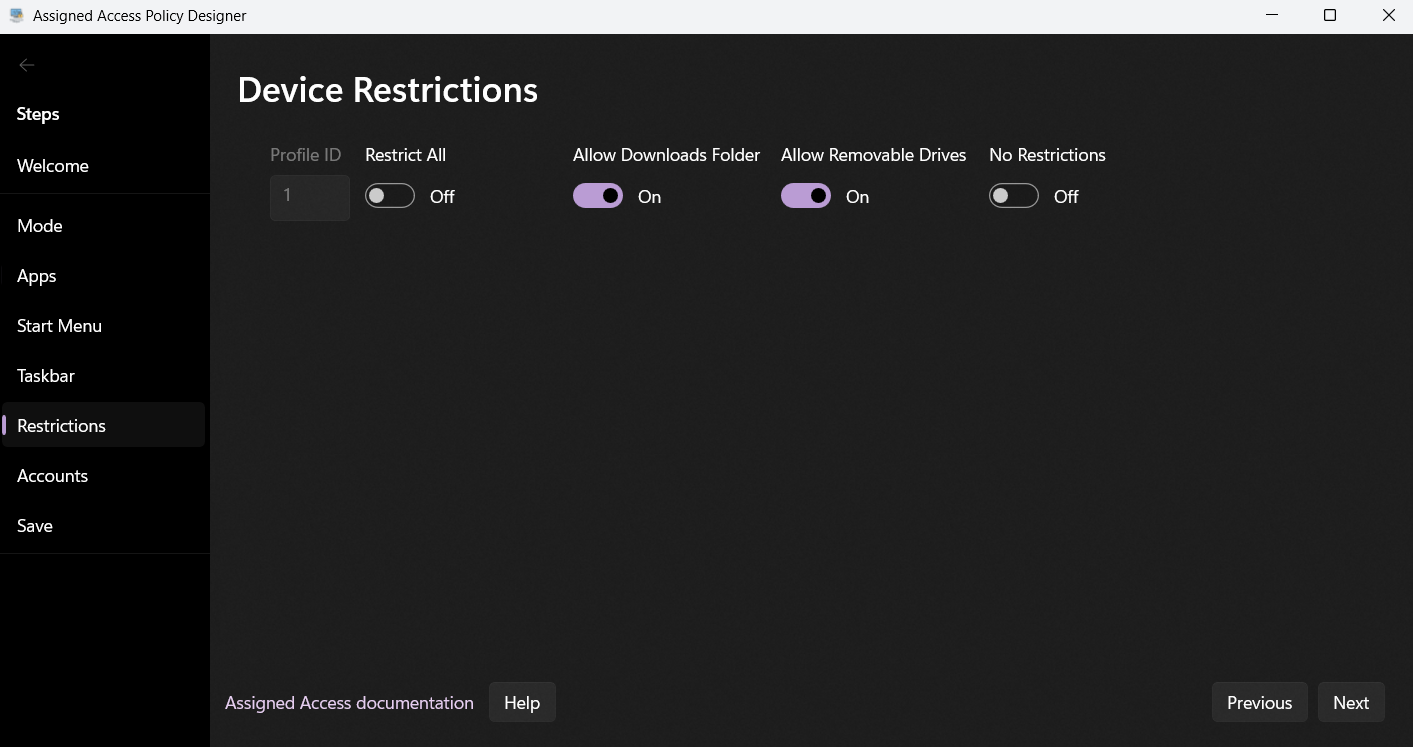
File Explorer Restrictions
When configuring a multi‑app kiosk, admins can apply restrictions to File Explorer to limit what users can access. This helps prevent data leakage, unauthorized file transfers, or general misuse of the device. Here are the key options:
Block File Explorer entirely
Users won’t be able to open File Explorer at all.
This is useful for kiosks where apps are pinned to the Start menu or Taskbar and no file browsing is needed.
Restrict access to Downloads folder
Prevents users from opening or saving files in the Downloads directory.
Helpful in scenarios where you don’t want kiosk users downloading and storing content locally.
Restrict access to removable storage
Blocks browsing of USB drives, SD cards, or other removable media.
This protects against data exfiltration or malware introduction via external devices.
Deploying with Intune
Once your XML file is ready, deploying it through Microsoft Intune is straightforward:
Export the XML from the tool.
In the Intune admin center, go to Devices > Configuration profiles > Create profile.
Choose Windows 10 and later as the platform, and Custom as the profile type.
Add a custom OMA‑URI setting pointing to the Assigned Access CSP (
./Device/Vendor/MSFT/AssignedAccess/Configuration).Upload your XML content as the value.
Assign the profile to the appropriate devices or groups.
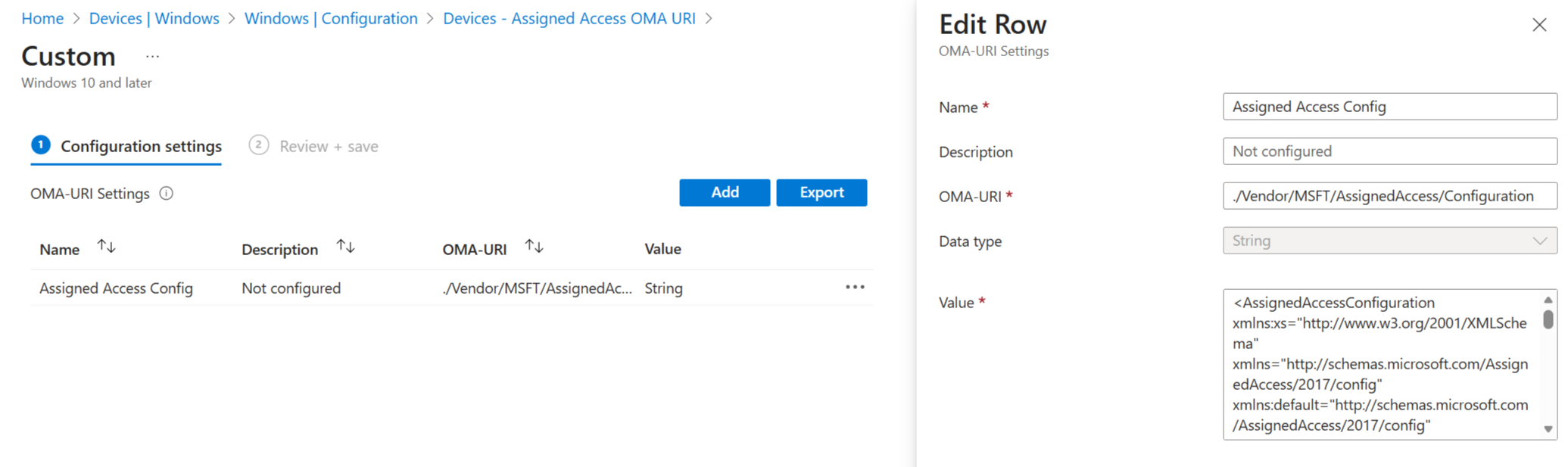
Intune will push the configuration to devices, enforcing the kiosk or restricted experience automatically. If the device was already signed in you may need to log off and back on, or reboot the device for the policy to apply.
